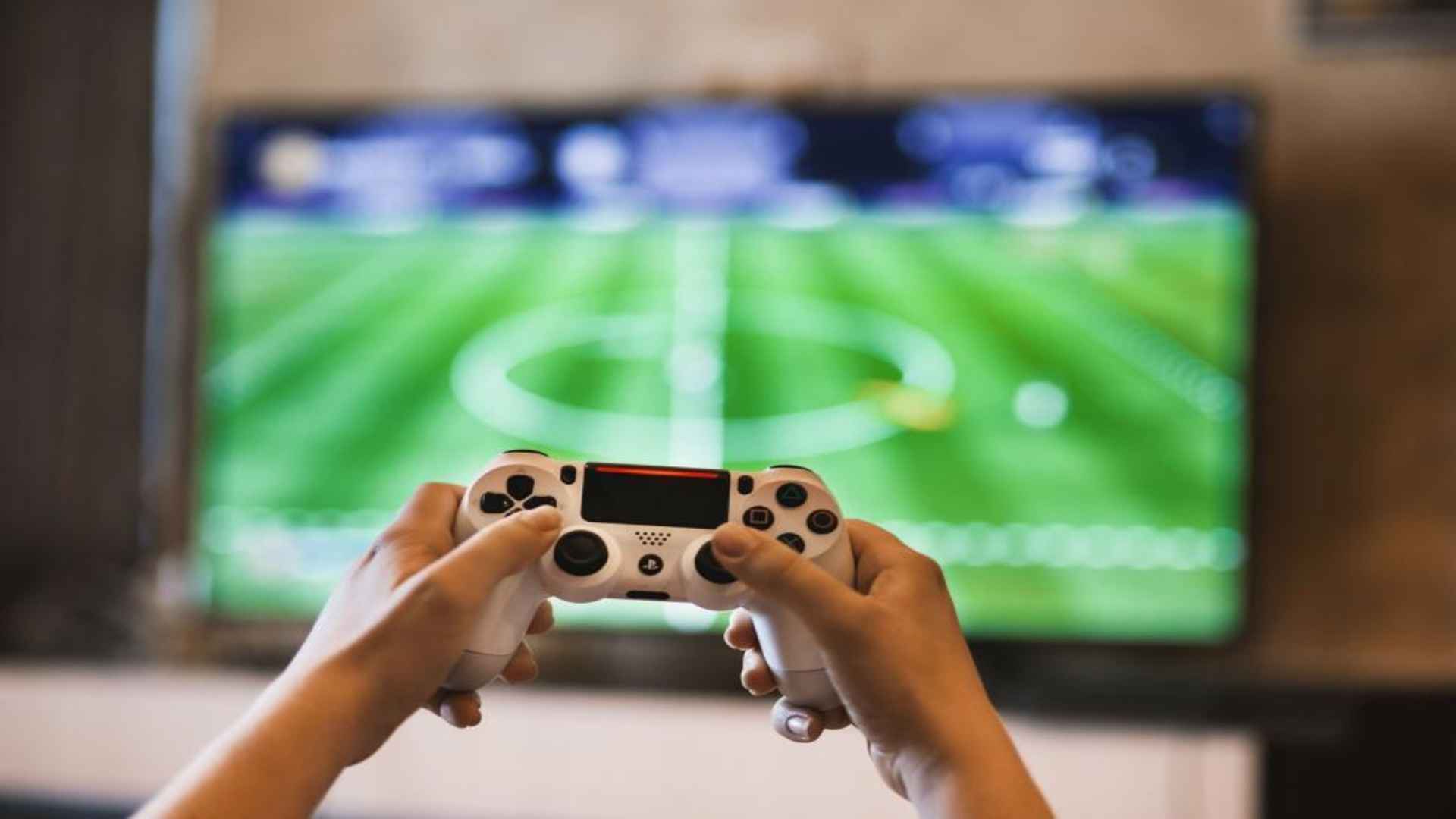
Connecting Valve's Steam Deck to a television transforms the portable handheld into a full-fledged home console experience. Whether you want to enjoy sprawling open-world adventures or couch co-op titles on a larger display, setting up the hardware is straightforward. Understanding the right cables, settings, and display adjustments ensures optimal visual performance and minimal latency.
Hardware Connections and Docking Options
To establish a physical connection, you can use either an official docking station or a compatible USB-C to HDMI adapter. Plug the HDMI cable from your television directly into the dock or adapter before connecting the USB-C lead to the top port of the Steam Deck. Using a power supply capable of pass-through charging is essential so your handheld remains powered during extended gaming sessions.
Configuring Display Resolution and Refresh Rates
Once connected, the Steam Deck screen usually turns off as the system detects the external display. By default, the handheld selects a resolution based on the TV's capabilities, but you can manually override these settings in the Display menu. Lowering the target resolution to 1080p often improves frame rate stability in demanding modern games compared to rendering natively at 4K.
Optimizing Television Settings for Lower Latency
Television processing features like motion smoothing can introduce noticeable input lag during gameplay. Enabling Game Mode in your television's picture settings bypasses redundant image processing and restores immediate response times. Additionally, verifying that audio output is routed through HDMI in the Steam Deck settings prevents sound from playing exclusively out of the built-in speakers.
Troubleshooting Common Signal and Display Issues
If your television displays a black screen after connecting, cycling the handheld in and out of Sleep Mode often forces a proper digital handshake. If display instability or signal dropping continues, turning on External Display Safe Mode in the system options forces a conservative resolution to guarantee a stable signal. Keeping your dock firmware updated through SteamOS also resolves underlying compatibility bugs with modern smart TVs.